
1
Assurance Wireless
T-Mobile network
4.5 / 5
- Plan
- Unlimited talk & text + up to 6GB high-speed data
- Devices
- Free smartphone included (BYOD available)
- Best for
- Best overall for most households
Works with BLU C5L Max
Independent guide — not the government, not a Lifeline provider
Find providers in your state

Aiden Hayes
March 22, 2025
We may earn a commission if you apply for service through a link on this page. Full disclosure.
5G home internet not working can be super frustrating. One moment, streaming a favorite show feels effortless, and the next, loading a webpage seems impossible. It’s like a game of hide and seek, with the internet playing the role of the elusive player. But there are ways to troubleshoot and fix these pesky problems. This article provides helpful tips and tricks to get the internet back up and running smoothly. Keep reading to find solutions that can make the connection reliable again.
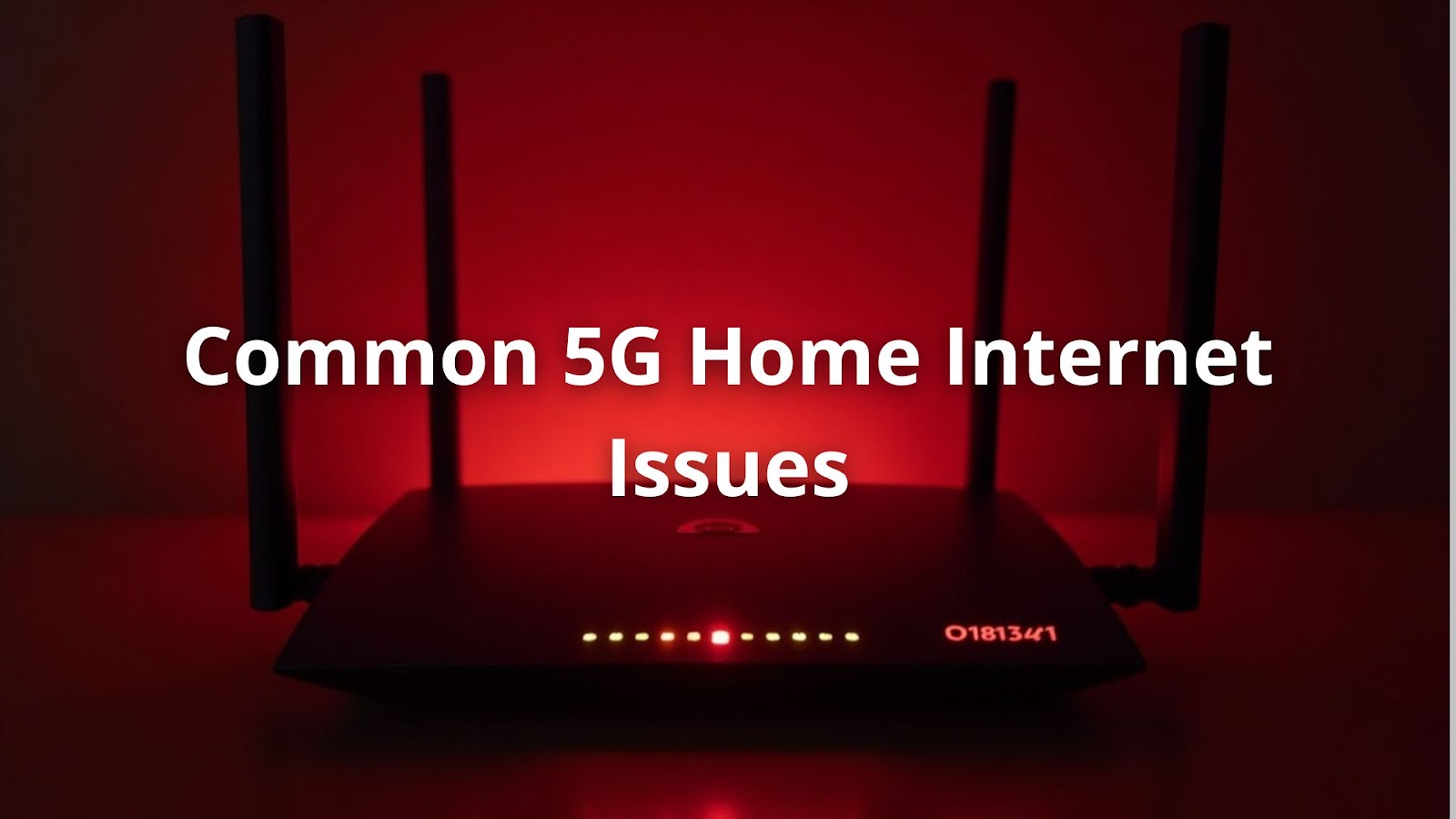
When 5G home internet isn't working, it can feel like being caught in a rainstorm without any shelter. Intermittent connections might happen. A device's LED light flashing red instead of solid white usually signals trouble. Slow speeds? That’s another issue. If internet speed tests show results that are way lower than expected, especially during busy times, something’s off. Lastly, there’s the pesky inability to connect. Devices need IP addresses and DHCP settings to get online, and if they can’t, frustration sets in.
These problems aren’t just annoying; they can really interfere with homework or video calls. Checking the device settings might help. Sometimes, simply restarting a router can fix a lot.
Getting the internet back on can feel like a puzzle. Sometimes, it's just a few simple steps. First, rebooting the device can work wonders. Unplugging the 5G modem for about 10-15 seconds is like giving it a short nap. When it wakes up, it might just be ready to go.
Next, checking physical connections is crucial. All cables should be snug and not damaged. Loose cables can be like a shoelace that won't stay tied—frustrating, right?
Also, the placement of the modem matters. Putting it in an open spot, preferably near a window, helps the signal travel better. Tight spaces, like a closet, can block the signal.
Here are some quick tips to remember:
Sometimes, a little tweak here and there makes a big difference. If you're still having trouble, consider upgrading to Cliq Mobile’s Fixed Wireless Access (FWA) for a more reliable and hassle-free internet experience. Check availability in userr area today!
If the basic tricks didn’t help, there’s still hope. Sometimes, a deeper look is needed. Checking for firmware updates is a smart move. It’s like giving the modem a little booster shot. Outdated firmware can slow things down or make connections spotty.
Testing internet speed is another good idea. Using online tools at different times can reveal if the speed is consistent. Busy hours might be causing the slowdown.
If nothing seems to work, a factory reset might be necessary. But caution is key! This wipes out any special settings, so it’s best to write down important info first.
Here are some steps to follow:
These steps can help get the internet working smoothly again.
When all else fails, sometimes it's time to call for backup. If the 5G home internet isn't working, contacting the service provider's technical support can be the next step. They can help figure out if the problem is with the equipment or something bigger.
Technical support knows their stuff. They might have special tips that are specific to the situation. It can be a relief to have someone else take a look.
Here are some things to keep in mind:
With these steps, getting the internet back on track might just be a phone call away.
Sometimes, the router’s settings can really mess with the internet. A few quick checks can help clear things up. First, frequency bands should be on. Both the 2.4GHz and 5GHz bands are important. Some devices love the 2.4GHz band because it has better range, which means a stronger signal for farther distances.
Next, interference can play a big part. If the router is stuck in a corner, it might struggle to send a strong signal. Moving it to the center of the house can make a huge difference in coverage.
Here are some tips to remember:
A good setup helps keep the internet running like a well-oiled machine. If you're struggling with weak signals and interference, Cliq Mobile’s FWA provides strong, consistent coverage without the hassle of traditional broadband.
Not all devices are created equal, and some might only work on certain bands. Keeping this in mind can save a lot of trouble. First, checking device compatibility is essential. Some devices might not handle 5G. If they can’t, they won’t connect properly, leaving users frustrated.
Another issue could be IP address conflicts. Sometimes, devices might fight over the same IP address, which can cause connection problems. The good news is that this can usually be fixed by restarting the devices or checking the router settings.
Here are some key points to remember:
Having devices that play nicely together can help avoid connection headaches and keep everything running smoothly. Cliq Mobile’s FWA ensures seamless compatibility with a variety of devices, giving user a smoother and faster internet experience. Check out our plans today!
Fast internet without the hassle of cables? That’s what Cliq Mobile’s FWA service offers. Using wireless signals from base stations, it delivers high-speed internet to homes and small businesses—no fibre, no complex wiring.
Pros
Cons
Dealbreaker: Those needing frequent assistance might find support lacking.
Best For: Families, remote workers, and small businesses in underserved areas who need fast, stable, and easy-to-set-up internet.
Credits: Datadog
Keeping an eye on the network can really help catch problems before they get worse. Monitoring is key. Using network monitoring apps can make this easy. These tools show which devices are connected and how they’re performing. This way, it’s possible to spot any slowpokes in the network that might be dragging things down.
Another thing to check is network congestion. If too many devices are online at once, it can slow everything down. A quick fix could be disconnecting some devices to see if speeds improve.
Here are some tips to consider:
Being proactive about the network can make a big difference and keep everything running smoothly.
Your 5G speed performance depends on distance from cell towers, physical barriers, and network congestion impacts during peak hours. Router placement recommendations matter—central, elevated locations work best. Weather can interfere with signal strength optimization. Home network setup choices affect performance, including connected device count. Running speed test results at different times helps identify performance patterns.
Reduce Wi-Fi signal interference by moving your gateway away from electronic devices and neighboring networks. Consider Wi-Fi extender compatibility for homes with range limitations. For better signal strength optimization, place your router centrally at an elevated position. Remove physical barriers when possible. Split devices between 2.4GHz and 5GHz bands. Update wireless network security settings to prevent unauthorized users.
Regular firmware updates for routers fix bugs, improve security, and enhance performance. Check monthly for gateway configuration settings updates through your provider's app or website. Some gateways update automatically, while others need manual installation. Outdated firmware can cause device connectivity problems and internet latency issues. Always check for available updates when troubleshooting persistent problems.
For ethernet connection issues, check cable integrity and ensure firm connections to both gateway and device. Try different ethernet ports on your gateway. Verify your computer recognizes the connection in network settings. Test with different cables or devices to identify the source. Ethernet should provide more stability than wireless, so persistent issues may indicate hardware compatibility issues.
Network device management challenges often stem from device IP address conflicts with too many simultaneous connections. Smart home device integration can complicate networks with incompatible protocols. Create separate networks for critical versus casual use. Use network performance monitoring tools to identify bandwidth-heavy devices. Regular rebooting network devices prevents common issues and improves internet speed optimization.
Contact your provider after trying troubleshooting wireless devices yourself without success. Document specific problems and steps taken. Check for known internet outage reporting on the provider's status page first. Call during non-peak hours for shorter waits. Keep notes about customer support experiences. When reporting ISP modem malfunctions, be specific about symptoms and timing.
Research home internet service comparisons in your area, including cable, fiber, and wireless alternatives. Consider home office internet needs when comparing plans. Look beyond advertised speeds to reliability statistics and user experiences. Home networking solutions vary in price, performance, and satisfaction. Router troubleshooting guides and Wi-Fi network management apps can help monitor service quality over time.
Addressing 5G home internet issues requires a mix of troubleshooting steps and proactive monitoring. Checking device compatibility and ensuring the router is properly set up can prevent many problems. Using network monitoring apps helps identify slow devices, while managing network congestion keeps everything running smoothly. When challenges arise, reaching out to technical support can provide additional guidance. By staying vigilant and informed, users can maintain a reliable internet connection and enjoy seamless online experiences.
Provider changes, renewal reminders, and benefits you might be missing. One email a month-ish.
Our current 2026 top picks — independently ranked, no pay-to-play.
T-Mobile network
Works with BLU C5L Max
Verizon network
T-Mobile network
Works with BLU C5L Max